
Screen Size, Pixel Density, and Viewing Distance: A Practical Guide to Picking a Monitor
Bigger isn't always better. Learn how screen size, pixel density, and the distance you sit all interact when choosing a monitor for home or work.
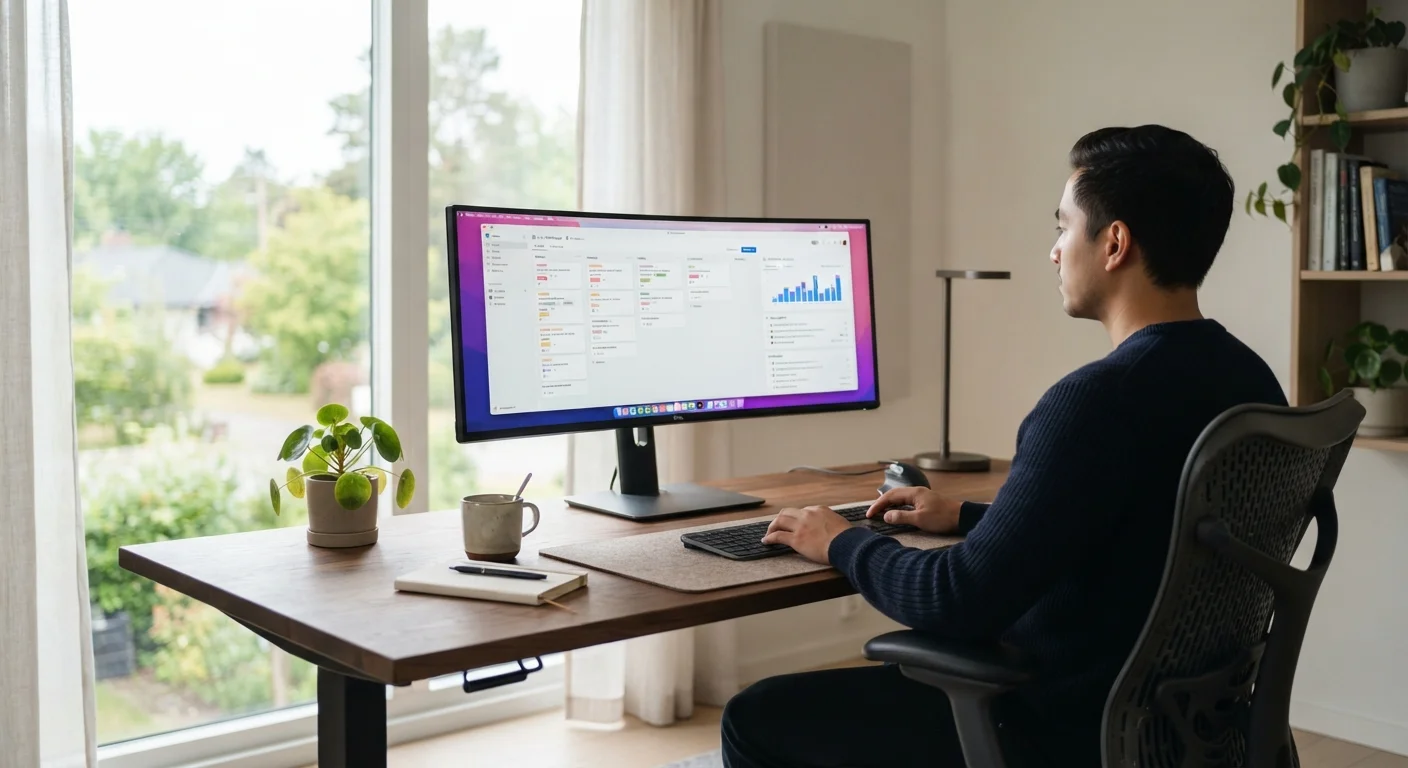
Photo: SaverSteals.com editorial
—— In This Article
Key Takeaways
- Viewing distance is just as important as screen size — closer seating demands smaller or higher-density displays.
- Pixel density (PPI) determines how sharp text and images look at a given screen size and resolution.
- A 27-inch 1080p monitor and a 27-inch 1440p monitor are not the same experience side by side.
- Matching resolution to screen size prevents blurriness up close or wasted sharpness at a distance.
- Most desk workers sit 24–30 inches from their screen — this single measurement drives most other choices.
Why Screen Size Alone Doesn't Tell the Whole Story
When shoppers compare monitors, screen size is usually the first number they notice. It's intuitive — bigger feels better. But a monitor's size is only meaningful in relation to two other variables: pixel density and how far away you sit. Ignore those two, and you can end up with a display that looks fuzzy at arm's length or one where you're squinting to read text on a screen that's technically high-resolution.
Pixel density is measured in pixels per inch (PPI). It describes how tightly packed the individual pixels are across a screen's surface. A 24-inch monitor running at 1920×1080 (Full HD) has roughly 92 PPI. Scale that same resolution up to a 32-inch panel and PPI drops to about 69 — meaning individual pixels become visible and text looks softer. Conversely, bump that 27-inch screen to 2560×1440 (QHD) and PPI climbs to around 109, producing noticeably crisper detail.
For a deeper look at how resolution specs translate to real-world picture quality, see our guide to TV specs explained — many of the same principles apply to monitors.
The 1-Degree Rule of Thumb
Human vision can resolve detail at roughly one arc-minute — meaning two distinct points separated by 1/60th of a degree. In practical terms, at 24 inches of viewing distance you generally cannot perceive individual pixels above about 115 PPI. At 32 inches, that threshold drops to around 85 PPI. This doesn't mean higher PPI is wasted — sub-pixel rendering for text and anti-aliasing both benefit from it — but it helps explain why a 4K TV across the room can look identical to a 1080p set.
What You Need Before You Start
Before working through the steps below, gather a few basic pieces of information. Having these ready will make every decision faster and more grounded.
What you will need
Step-by-Step: Matching Your Monitor to Your Setup
Measure Your Viewing Distance
Sit in your normal working position and measure the distance from your eyes to where the monitor screen will sit. Write this number down in inches. Most desk setups fall between 24 and 36 inches. This single measurement is your anchor for every decision that follows.
Choose a Screen Size Range for Your Distance
Use your viewing distance to set a sensible screen size ceiling. As a general rule:
- 20–24 inches away: 24–27 inch screens tend to fill your field of view appropriately without requiring head movement.
- 25–30 inches away: 27–32 inch screens work well for this mid-range distance.
- 31–40 inches away: 32 inches and above, including ultrawides, become reasonable without feeling excessive.
These are starting ranges, not hard limits. Personal preference and the nature of your work both matter.
Identify the Minimum Useful PPI for Your Use Case
Different tasks have different sensitivity to pixel density. Photo and graphic editing benefit from 100+ PPI, where individual pixels don't distract from fine detail. General office work is comfortable at 90–100 PPI. If you're primarily watching video at a greater distance, 80–90 PPI is often sufficient. Use your use case to set a PPI floor.
Match Resolution to Screen Size
Now combine your size range and PPI floor to arrive at a resolution target:
- 24 inches: 1920×1080 (Full HD) hits roughly 92 PPI — a practical minimum for close desk work.
- 27 inches: 2560×1440 (QHD) reaches about 109 PPI and is widely considered the sweet spot for this size.
- 32 inches: 2560×1440 yields ~92 PPI; 3840×2160 (4K) reaches ~138 PPI for sharp creative work.
If the resolution needed to hit your PPI floor at your preferred screen size is outside your budget, adjust screen size down rather than dropping resolution — smaller and sharp is a better experience than larger and soft.
Verify OS and Application Scaling Support
If your chosen resolution results in very high PPI (above ~150), confirm that your operating system's display scaling feature is compatible with the software you use daily. Windows and macOS both offer scaling options, but some older or niche applications can render blurry text at non-native scale factors. Test before finalising your decision where possible.
Once you've worked through the steps, you'll have a clear target — a screen size and resolution combination that makes sense for your physical workspace, not just the store shelf. If you're also evaluating panel technology (IPS vs. VA vs. OLED), our panel type explainer is a useful companion read.
Don't Forget Ergonomic Height and Tilt
Even a perfectly spec'd monitor will cause eye strain if it's positioned too high, too low, or angled incorrectly. The top of the screen should generally sit at or slightly below eye level. Many monitors have limited height and tilt adjustment out of the box — check the stand's adjustment range before purchasing, or budget for a monitor arm if flexibility is important.
Common Mistakes and How to Avoid Them
Even armed with the right framework, a few patterns trip people up repeatedly:
- Buying resolution without buying size to match. A 4K (3840×2160) monitor at 24 inches produces roughly 183 PPI — impressive on paper, but your operating system may need to use display scaling to make text readable, which can introduce blurriness in some applications. Check that software you rely on handles high-DPI scaling well before committing.
- Ignoring desk depth. A deep desk that puts you 36 inches from the screen means a 32-inch monitor may actually feel appropriately sized. A shallow desk at 20 inches makes the same screen feel overwhelming.
- Treating ultrawide aspect ratios as just "bigger." A 34-inch ultrawide (21:9) has the same vertical height as roughly a 27-inch standard (16:9) monitor. If your main need is vertical screen real estate for documents, an ultrawide may disappoint.
Making thoughtful, list-driven decisions before you shop generally leads to better outcomes than browsing by feel — a principle that applies well beyond electronics. See shopping with a list versus shopping by feel for more on that approach.

Shopping Editorial Team
Shopping Editorial Team is the collective byline for our editorial team and contributor network. Articles published under this byline or an editorial pen name are researched, written, and reviewed according to our editorial standards for clarity, consistency, and independence before publication.
View author profile