
Wi-Fi Frequency Bands Explained: The 2.4 GHz vs. 5 GHz vs. 6 GHz Difference
Your router likely broadcasts on multiple frequency bands. Here's what each one does well and when switching bands actually solves a problem.
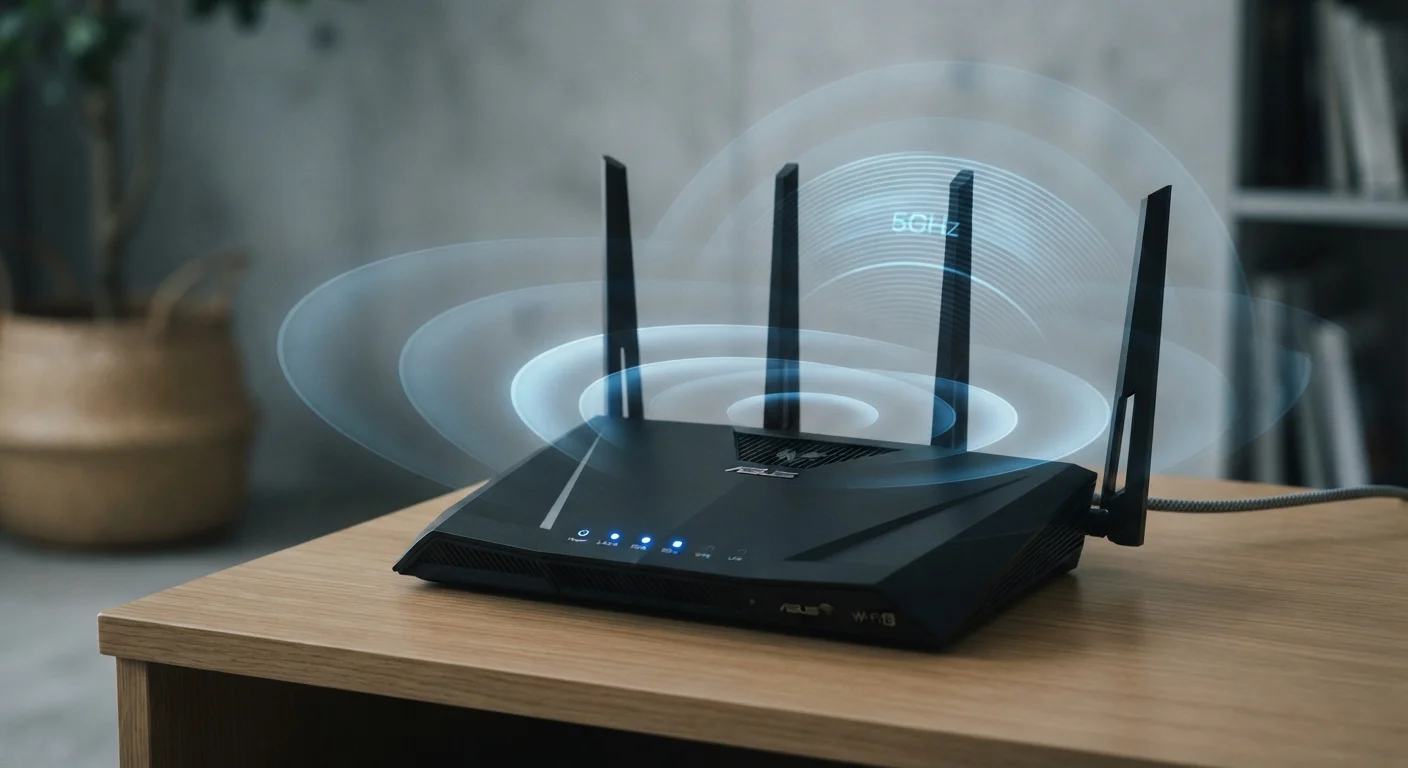
Photo: SaverSteals.com editorial
—— In This Article
Key Takeaways
- 2.4 GHz travels farther and penetrates walls better but is slower and often congested.
- 5 GHz delivers faster speeds at shorter range and is less crowded in most homes.
- 6 GHz offers the fastest speeds and lowest interference, but only on Wi-Fi 6E and 7 routers and compatible devices.
- Most modern routers broadcast all active bands simultaneously — you choose which to connect to.
- Matching the right band to the right device and location solves most common Wi-Fi frustrations.
Why Frequency Bands Matter for Everyday Wi-Fi
When Wi-Fi feels sluggish or drops in certain rooms, the problem often isn't your internet service — it's which frequency band your device is using. Understanding the basic trade-offs between 2.4 GHz, 5 GHz, and 6 GHz lets you troubleshoot confidently and get more out of hardware you already own.
Think of frequency bands like lanes on a highway. Some lanes are wider and faster but don't extend far; others stretch for miles but get congested. Your devices pick a lane when they connect, and a bad choice slows everything down.
3
Non-overlapping 2.4 GHz channels available in the U.S.
The FCC allocates channels 1, 6, and 11 as the standard non-overlapping set in the 2.4 GHz band.
1,200 MHz
Additional spectrum opened by the 6 GHz band
The FCC's 2020 ruling added 1,200 MHz of unlicensed spectrum in the 6 GHz band, compared to roughly 70 MHz in 2.4 GHz.
24+
Non-overlapping channels available on 5 GHz
The 5 GHz band supports significantly more channels than 2.4 GHz, substantially reducing network congestion in dense environments.
2.4 GHz: Long Range, High Congestion
The 2.4 GHz band has been the Wi-Fi default since the original 802.11b standard. Its strength is range: the lower frequency penetrates drywall, floors, and furniture far more effectively than higher bands. If a device sits two rooms away or on a different floor, 2.4 GHz often maintains a usable signal where 5 GHz drops out entirely.
The trade-off is speed and crowding. The 2.4 GHz band has only three non-overlapping channels in the U.S. Every router in your building using that band is competing in the same narrow space. Bluetooth devices, cordless phones, and microwave ovens also operate near 2.4 GHz, adding interference. Maximum real-world throughput on 2.4 GHz rarely exceeds 100 Mbps under ideal conditions.
Best for: smart home sensors, security cameras, IoT devices, and any gadget located far from the router that doesn't stream heavy data.
5 GHz: Faster Speeds, Shorter Reach
The 5 GHz band is the sweet spot for most modern home networking tasks. It offers substantially more available channels — up to 24 non-overlapping channels in many configurations — which dramatically reduces congestion compared to 2.4 GHz. Real-world speeds can reach several hundred Mbps on a well-positioned connection, making it well suited for streaming 4K video, video conferencing, and online gaming.
The limitation is physics: higher frequencies lose energy more quickly over distance and struggle to pass through dense materials. Move your laptop one room away with a wall in between and the 5 GHz signal may weaken noticeably, while 2.4 GHz holds steady.
Best for: laptops, phones, smart TVs, and gaming consoles within reasonable range of the router — roughly the same floor or an adjacent room.
Check Your Router's Channel Setting
If your 5 GHz connection feels slower than expected, check whether your router is set to 'Auto' channel selection. In dense apartment buildings, manually selecting a less-used channel can noticeably reduce interference. Your router's admin interface — typically reached by typing its IP address into a browser — usually shows which channels nearby networks are using.
6 GHz: The Newest Band and What It Adds
The 6 GHz band arrived with the Wi-Fi 6E standard and is also central to Wi-Fi 7. It opens up a large swath of clean, largely uncrowded spectrum — up to 1,200 MHz of bandwidth compared to around 70 MHz on 2.4 GHz. That headroom enables multi-gigabit speeds with very low latency when conditions are right.
The practical catch: 6 GHz has even shorter range and less wall penetration than 5 GHz. It's genuinely useful only when a compatible device is relatively close to the router. More importantly, only Wi-Fi 6E or Wi-Fi 7 hardware on both the router and client device can use it — a 2019 laptop or phone will simply not see the 6 GHz network.
Best for: high-demand tasks like VR streaming, large file transfers, or latency-sensitive gaming on compatible devices in the same room or adjacent space as the router.
Wi-Fi 6E vs. Wi-Fi 6: Not the Same
Wi-Fi 6 and Wi-Fi 6E are easy to confuse, but only Wi-Fi 6E adds 6 GHz support. A device or router labeled 'Wi-Fi 6' (without the 'E') still operates exclusively on 2.4 GHz and 5 GHz. Check product specifications carefully before assuming 6 GHz capability.
Choosing the Right Band for Each Device
Most dual- and tri-band routers now offer a feature called band steering, which automatically suggests the best band for a connecting device. It works reasonably well, but manual assignment sometimes produces better results for specific devices.
A practical approach: keep smart home devices and far-flung gadgets on 2.4 GHz, assign phones and laptops to 5 GHz, and reserve 6 GHz — if your router and device support it — for the highest-demand applications near the router. Some routers let you create separate network names (SSIDs) for each band, giving you direct control.
If you're comparing this kind of wireless technology decision-making to other short-range wireless standards, you may also find it useful to review how Bluetooth versions differ, since Bluetooth and Wi-Fi share some of the same spectrum and the version logic follows similar trade-off patterns.
Frequently Asked Questions

Shopping Editorial Team
Shopping Editorial Team is the collective byline for our editorial team and contributor network. Articles published under this byline or an editorial pen name are researched, written, and reviewed according to our editorial standards for clarity, consistency, and independence before publication.
View author profile