
USB-A, USB-C, Thunderbolt, HDMI: A Plain-English Port Reference
A quick-reference guide to the most common ports on modern devices — what each connector does and which cables belong with it.
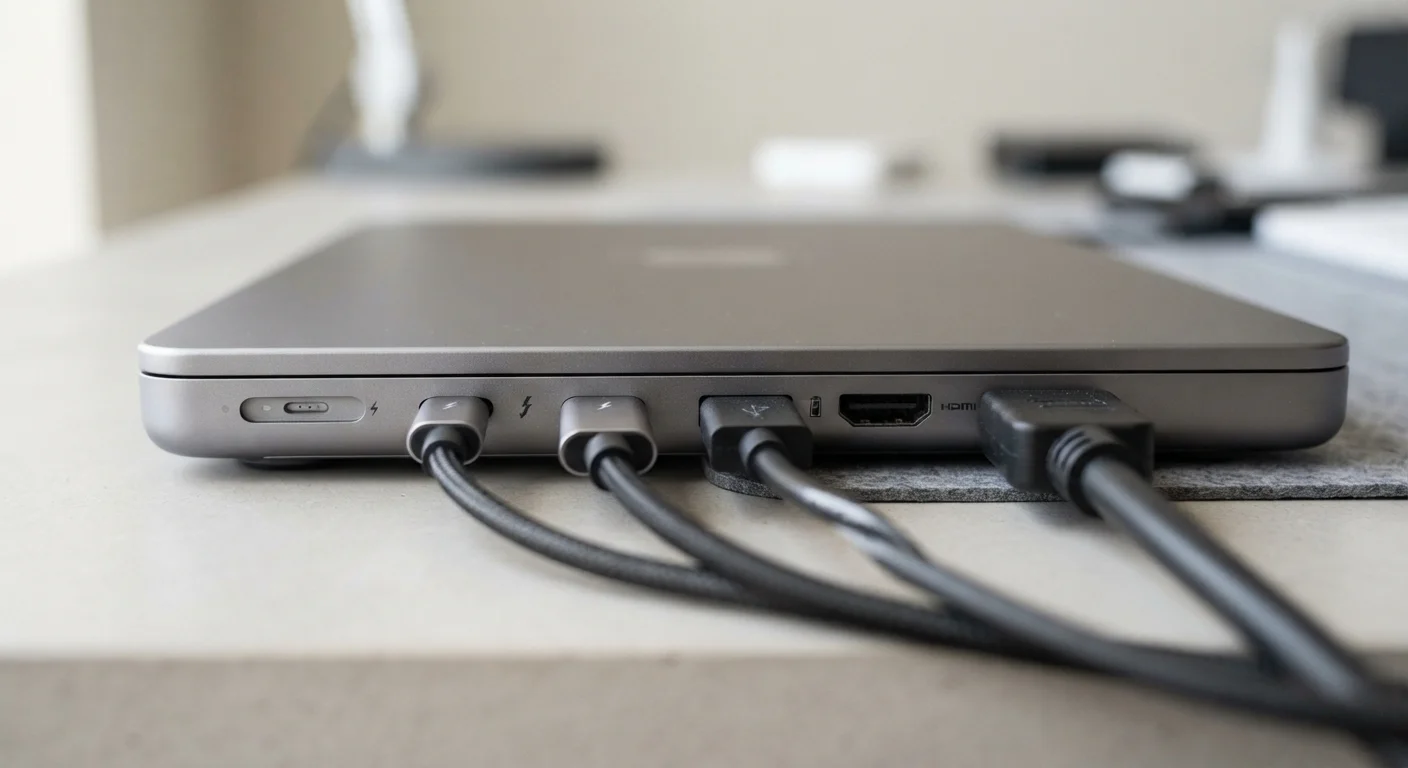
Photo: SaverSteals.com editorial
—— In This Article
Why Port Names Are Confusing (And How to Cut Through It)
The back and side panels of a laptop or monitor can look like an alphabet soup of rectangles and ovals. Manufacturers label ports inconsistently, cables are often sold without clear explanations, and the same connector shape can carry wildly different capabilities depending on the version. This reference breaks down the four port families you encounter most — USB-A, USB-C, Thunderbolt, and HDMI — so you can match cables correctly and understand what each connection actually delivers.
For a parallel look at how connector choices affect everyday peripherals, see our guide to wired vs. wireless trade-offs.
| USB-A max speed (USB 3.2 Gen 2) | 10 Gbps (USB Implementers Forum specification) |
| USB-C max power (USB PD 3.1) | 240 W (USB Implementers Forum, 2021) |
| Thunderbolt 4 bandwidth | 40 Gbps (Intel Thunderbolt 4 specification) |
| HDMI 2.1 max resolution | 10K (HDMI Forum specification) |
| USB-C connector reversible? | Yes — inserts either way (USB-C physical standard) |
| Thunderbolt daisy-chain limit | Up to 6 devices (Intel Thunderbolt specification) |
USB-A: The Rectangular Workhorse
USB-A is the flat, rectangular port most people simply call "a USB port." It has been the default connector for keyboards, mice, flash drives, and chargers since the late 1990s. The key things to know:
- Orientation: USB-A is not reversible — it only inserts one way.
- Speed generations: USB 2.0 delivers up to 480 Mbps. USB 3.0 (sometimes labeled USB 3.1 Gen 1 or USB 3.2 Gen 1) reaches 5 Gbps. USB 3.1 Gen 2 doubles that to 10 Gbps. Port color is a rough guide — blue typically signals USB 3.x, black or white usually means USB 2.0 — but this is not universal.
- Power delivery: Standard USB-A ports supply 4.5–18 W depending on the spec. Look for ports marked with a lightning bolt or "SS+" for faster charging.
USB-A remains widely available, but newer thin laptops are dropping it in favor of USB-C. A small USB-A to USB-C adapter or hub bridges the gap when needed.
Bandwidth
The maximum rate at which data can move through a connection, typically expressed in megabits per second (Mbps) or gigabits per second (Gbps). Higher bandwidth means faster file transfers and support for higher-resolution video.
Alt Mode
A feature of USB-C that allows the port to carry non-USB signals — such as DisplayPort or HDMI video — through the same physical connector. Not all USB-C ports support Alt Mode.
USB Power Delivery (USB PD)
A USB charging standard that allows devices to negotiate higher power levels — up to 240 W under the latest spec — over a compatible USB-C cable and port.
Daisy-chaining
Connecting multiple devices in a series from a single port. Thunderbolt supports daisy-chaining, so one laptop port can power a chain of monitors, drives, and hubs.
Thunderbolt Certification
An Intel certification indicating a device or cable meets the full Thunderbolt spec. Certified products carry a lightning-bolt logo and are tested for compatibility and performance.
HDMI Version
The revision of the HDMI standard a port or cable supports. The version determines maximum resolution and refresh rate; both the source and display must match versions to reach peak performance.
USB-C: The Oval That Does Many Jobs
USB-C is the small, oval, reversible connector now found on smartphones, tablets, laptops, and accessories. The connector shape is standardized, but what travels through it varies enormously based on the underlying protocol:
- USB 3.2 / USB4: Data transfer from 5 Gbps up to 40 Gbps depending on the version.
- Power Delivery (USB PD): Can charge devices up to 240 W under the USB PD 3.1 spec — enough for large laptops.
- DisplayPort Alt Mode: Allows video output through the USB-C port using a USB-C to DisplayPort cable.
- Thunderbolt 3/4: A superset that uses the same physical USB-C connector but adds higher bandwidth and daisy-chaining (see next section).
The practical takeaway: not every USB-C port supports every feature. A port on a basic Android charger may only carry power. A port on a premium laptop may carry data, video, and power simultaneously. Check your device's documentation or look for the Thunderbolt lightning-bolt icon.
240 W
Max USB-C Power Delivery under PD 3.1
The USB Implementers Forum's 2021 Extended Power Range update raised the ceiling enough to charge large gaming laptops over a single USB-C cable.
40 Gbps
Thunderbolt 4 data bandwidth
At this speed, a 100 GB file transfers in roughly 20 seconds — roughly 8x faster than USB 3.2 Gen 1 at 5 Gbps.
4
Different HDMI versions commonly found in consumer devices
HDMI 1.4, 2.0, 2.0b, and 2.1 each exist in active use, which is why checking version compatibility matters before purchasing a cable or display.
Thunderbolt: USB-C's High-Performance Sibling
Thunderbolt is Intel's high-bandwidth protocol that physically uses the USB-C connector shape on Thunderbolt 3 and 4. It is a superset of USB-C, meaning a Thunderbolt cable works in a USB-C port (at USB speeds), but a plain USB-C cable will not unlock Thunderbolt speeds in a Thunderbolt port.
- Thunderbolt 3: Up to 40 Gbps, supports dual 4K displays or one 5K display, and delivers up to 100 W power.
- Thunderbolt 4: Same 40 Gbps ceiling but adds mandatory minimum requirements — all TB4 ports must support at least two 4K displays and 32 Gbps PCIe bandwidth.
- Thunderbolt 5: Announced for newer hardware; targets 120 Gbps bandwidth for demanding workloads.
- Daisy-chaining: Up to six Thunderbolt devices can connect in a chain from one port.
Thunderbolt is particularly useful for external GPU enclosures, high-speed external storage, and docking stations. Certified cables and devices carry an official lightning-bolt logo.
HDMI: Video and Audio Over One Cable
HDMI (High-Definition Multimedia Interface) is the dominant standard for connecting devices to TVs, monitors, and projectors. Unlike USB, HDMI carries audio and video only — no data transfer or device charging.
- HDMI 1.4: Supports up to 4K at 30 Hz. Common on older TVs and budget monitors.
- HDMI 2.0: Supports 4K at 60 Hz and HDR. The most prevalent standard on current mid-range hardware.
- HDMI 2.1: Supports up to 10K resolution, 4K/144 Hz, and 8K/60 Hz. Required for high-refresh-rate gaming setups.
- Connector sizes: Standard HDMI (Type A) is the large rectangular plug for TVs and monitors. Mini HDMI (Type C) and Micro HDMI (Type D) appear on cameras and some tablets.
One common confusion: an HDMI cable does not determine the resolution you get — both the source device and the display must support the same HDMI version to unlock its maximum capability. A 2.1 cable in a 2.0 port runs at 2.0 speeds.
Cable Quality Still Matters
A cable marketed as "HDMI 2.1" or "Thunderbolt 4" is only as reliable as its certification. For Thunderbolt, look for the official Intel lightning-bolt logo on the cable packaging. For HDMI 2.1, the HDMI Forum's "Ultra High Speed" label indicates the cable has been tested to spec. Generic, uncertified cables can technically work but may drop performance at high resolutions or bandwidth loads.
If you want to understand how these cable decisions play out in practice when setting up peripherals, the wired vs. wireless trade-offs article covers real-world setups in more depth.

Shopping Editorial Team
Shopping Editorial Team is the collective byline for our editorial team and contributor network. Articles published under this byline or an editorial pen name are researched, written, and reviewed according to our editorial standards for clarity, consistency, and independence before publication.
View author profile