

Key Takeaways
Why Amazon's Coupon System Is Worth Mastering
Amazon's coupon system is deliberately understated. Unlike a flash sale banner or a Lightning Deal countdown timer, coupons sit quietly on product pages behind a small green badge that most shoppers scroll past without a second thought. That's a meaningful missed opportunity - Amazon routinely lists coupons worth 5% to 30% off on everything from pantry staples to electronics accessories, and those discounts apply before any other deal layer you bring to the table.
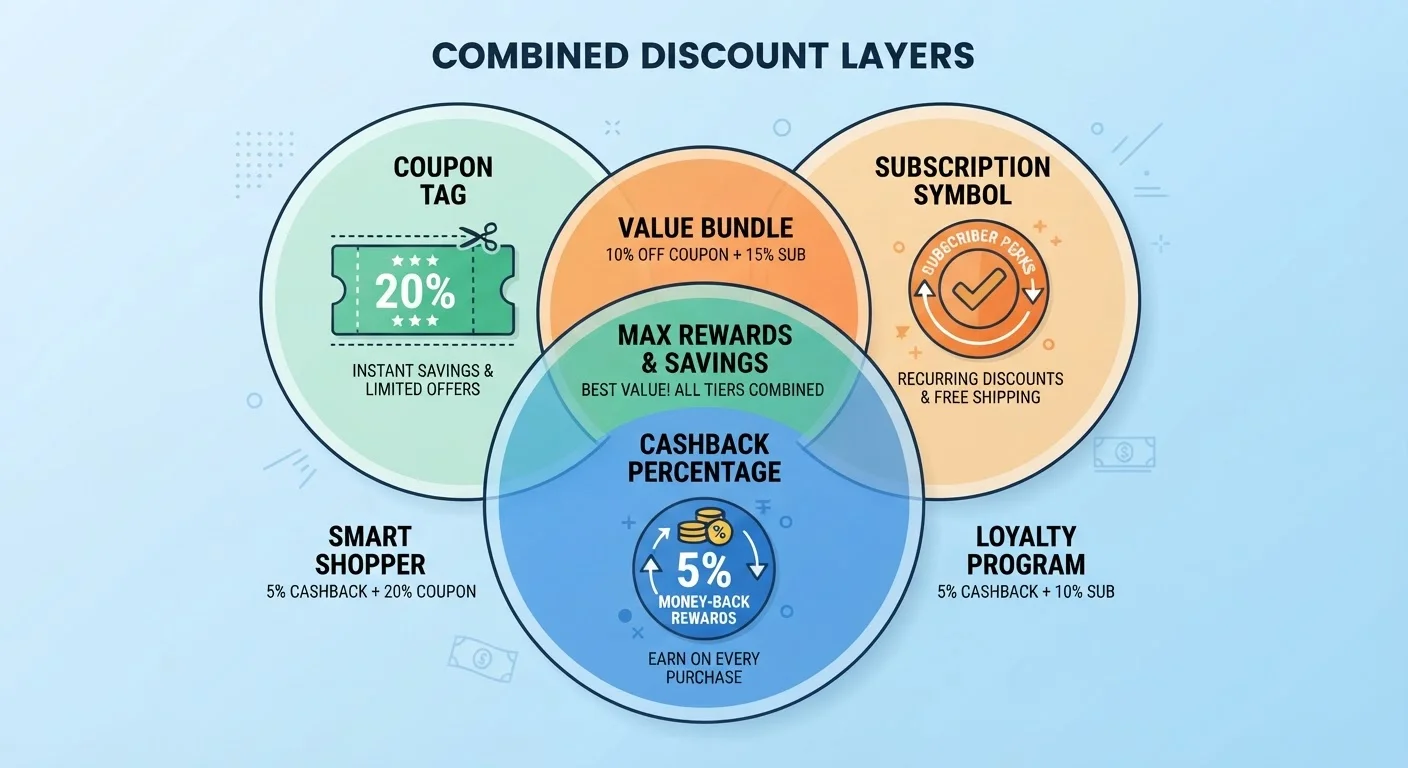
Understanding how the system works also unlocks combination strategies. If you already know the fundamentals of how discount layering works, Amazon's platform offers several compatible stacking angles: coupons plus Subscribe & Save, coupons plus promotional codes, and coupons plus third-party cashback portals. Getting all three working together on a single order is a skill that pays off consistently, not just once.
This walkthrough covers the complete mechanics - where coupons live, how to clip them correctly, how to verify they applied, and how to build a repeatable system so you never leave a coupon on the table again.
What You'll Need Before You Start
Amazon coupons are accessible to all shoppers, but your access level and available deals differ meaningfully depending on your account setup. Sort out the following before diving into the steps.
What you will need
Amazon Account (Prime or Free)
Required to clip and redeem coupons - guest checkout does not support coupon application.
Amazon Coupons Page (amazon.com/coupons)
Central hub for browsing all currently available clippable coupons organized by category.
Cashback Browser Extension (e.g., Rakuten, Honey, Capital One Shopping)
Tracks cashback on qualifying Amazon purchases and can layer savings on top of clipped coupons.
Price History Tracker (e.g., CamelCamelCamel)
Shows historical price trends so you can confirm you're buying at or near the all-time low.
Amazon Wish List
Lets you monitor items over time and catch coupon offers that appear after initial product discovery.
Step-by-Step: Finding, Clipping, and Applying Amazon Coupons
Follow these steps in order. Skipping ahead - especially the clipping step - is the most common reason coupons fail to apply at checkout.
Navigate to the Amazon Coupons Page or a Product Listing
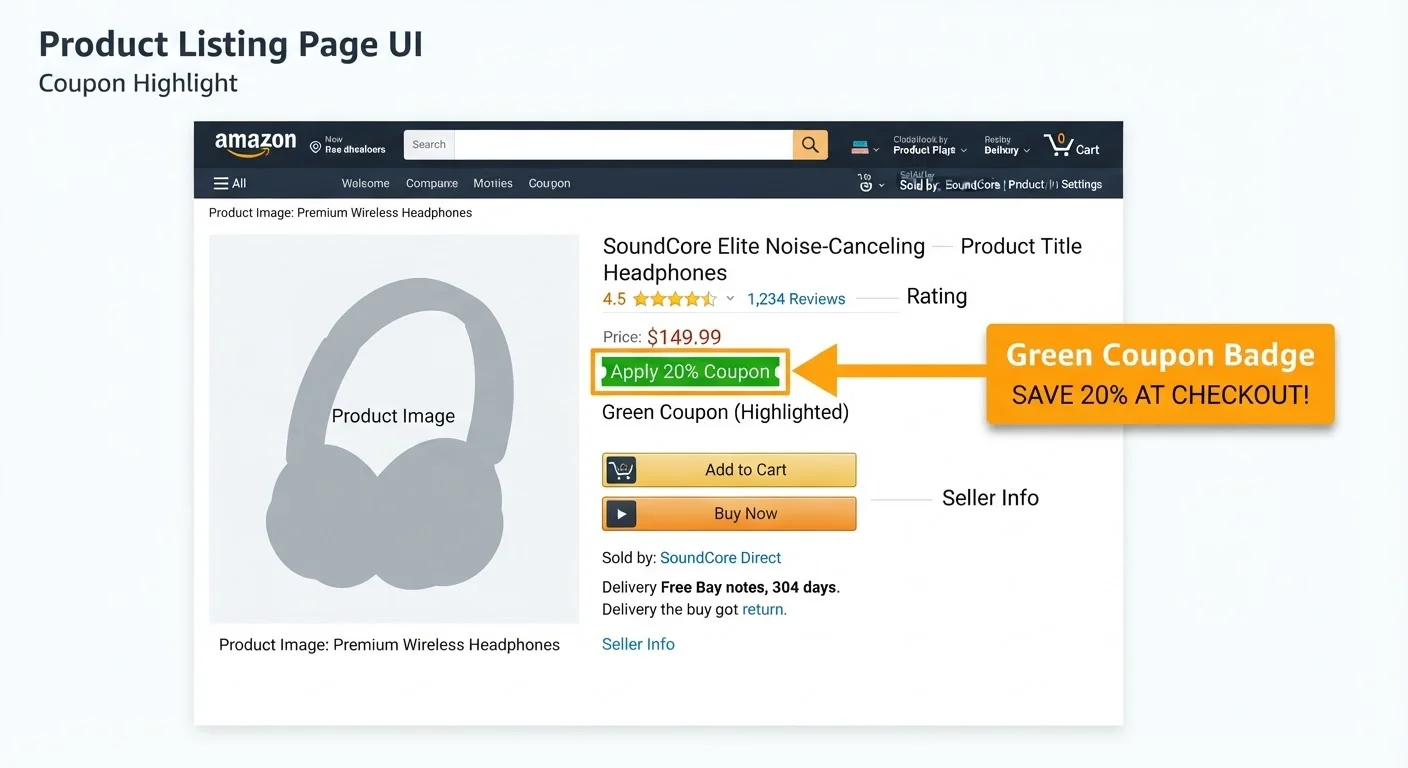
Start at amazon.com/coupons to browse available offers by category - this is the most efficient way to find coupons you might not encounter through normal search. Alternatively, search for a specific product and look for a green coupon badge beneath the price on the product detail page. The badge will read something like "Clip coupon - save $X" or "Clip coupon - save X%."
Not every product has a coupon. If no badge is visible, check the product's listing in the Coupons hub directly using the search bar on that page.
Read the Coupon Terms Before Clipping
Click on the coupon badge or the small "See details" link near it. Review the following before clipping:
- Expiration date - coupons expire at the end of the listed day, Pacific Time
- Seller restriction - some coupons apply only to Amazon-fulfilled or specific third-party sellers
- Quantity limit - most coupons allow one redemption per customer
- Item variants - a coupon on a product may apply only to specific sizes, colors, or counts
Misreading these terms is the primary reason coupons fail to apply at checkout.
Clip the Coupon
Click the "Clip coupon" button directly on the product page. The button text will change to "Coupon clipped" and the badge will update to confirm. This registers the coupon to your account - it is not yet applied to your cart.
You can manage all clipped coupons at amazon.com/mycoupons to see what's active, what's been redeemed, and what has expired.
Add the Item to Your Cart
After clipping, add the item to your cart using the standard "Add to Cart" button. Do not change the seller, size, or variant after clipping - doing so may invalidate the coupon if those attributes were part of the offer's terms.
If you're buying multiple units, check whether the coupon applies per order or per unit. Most Amazon coupons are one-time-use per customer, meaning the discount applies once regardless of quantity.
Verify the Discount in Your Cart and at Checkout
Go to your cart and review the order summary on the right side. You should see a line item that reads "Coupon savings" or similar, with the discount amount shown in green. If this line does not appear:
- Return to the product page and confirm the coupon is still showing as clipped
- Check that the seller in your cart matches the seller specified in the coupon terms
- Confirm the coupon has not expired
- Remove the item and re-add it, then check the order summary again
Proceed through checkout and confirm the coupon savings line appears on the final order review screen before submitting your payment.
Check Your Order Confirmation for Applied Savings
After placing the order, open the order confirmation email or navigate to Your Orders > Order Details. The itemized breakdown should include a coupon savings line. This is your confirmation that the discount applied successfully.
If the coupon savings line is absent, contact Amazon customer service within 24-48 hours. Note the coupon amount, the order number, and the product ASIN. Amazon support can manually credit the discount in many cases, but response time and success rate vary.
Once you've confirmed the coupon applied, consider whether the item is also eligible for Subscribe & Save. That program has its own calculus - read our breakdown of when Subscribe & Save actually saves you money before enrolling, since the discount isn't always the deepest available option.
Coupons Disappear Before Checkout
Amazon coupons can expire mid-session if the seller's redemption budget runs out or the promotion end date passes. If you clip a coupon, add an item to your cart, and delay checkout by several hours, verify the coupon is still active before paying. A coupon showing as clipped in your account does not guarantee it will apply if the underlying offer has ended.
Stacking Coupons with Other Amazon Discounts
Clipping a coupon is the floor, not the ceiling. Amazon's system permits several legitimate combinations that compound your savings without violating platform terms.
Coupon + Subscribe & Save
When you enroll an item in Subscribe & Save, Amazon applies that discount first, then calculates the coupon value against the post-S&S price (or in some cases against the original price, depending on coupon structure). Either way, both discounts apply. The combined effect on household consumables - paper goods, cleaning products, supplements - is frequently the lowest per-unit price available anywhere.
Coupon + Promo Code
Some seller-issued or Amazon-issued promotional codes stack with clipped coupons. There's no reliable way to know in advance whether they'll combine - you have to test at checkout. Add the item, clip the coupon, enter the promo code in the gift card/promo code field, and watch the order summary. If both reductions appear, you're clear. If only one applies, the system will default to whichever discount is higher.
Coupon + Cashback Portal
Third-party cashback portals (browser extensions or standalone apps) operate outside Amazon's discount system and do not conflict with clipped coupons. Activate your cashback session before navigating to Amazon, clip the coupon on the product page, and complete checkout. The cashback tracker records the session independently. This is one of the cleanest stacking opportunities available because no Amazon policy restricts it.
Activate Cashback Before Visiting Amazon
If you use a cashback browser extension, activate it before navigating to Amazon - not after you've already landed on the product page. Some extensions only track sessions that begin from their portal or an activated click. Starting the cashback session after you're already on Amazon may result in the purchase not being tracked at all.
Prime-Exclusive Coupons Are Logged-In Only
A significant portion of the best Amazon coupons are visible only when you're logged in with a Prime account. If you're browsing in an incognito window or as a guest, you won't see these offers. Always browse the Coupons page while logged in to your Prime account for the full selection.
For a full audit process that ensures you've layered every eligible discount before hitting the buy button, work through the pre-checkout coupon stacking audit - it's designed specifically for orders where multiple discount types are in play.
Common Mistakes and How to Avoid Them
Amazon's coupon system is straightforward once you know the rules, but a few recurring mistakes cost shoppers their discounts with no warning at checkout.
Clipping After Adding to Cart
You can clip a coupon at any point before checkout, but the safest habit is to clip it before adding the item to your cart. Some users report that clipping from the cart page occasionally fails to register - the green badge updates, but the discount doesn't appear in the order summary. Clip from the product page to avoid this.
Assuming the Coupon Applies to All Sellers
Many Amazon coupons are seller-specific. If the same product is sold by multiple sellers and you switch sellers (for example, chasing a lower base price), your clipped coupon may no longer apply. Check the coupon terms on the product page - they specify whether the offer is restricted to a particular seller or fulfilled-by-Amazon listings.
Missing Expiration Dates
Coupon expiration dates are displayed in small text near the clip button. Dates run to the end of the listed day in Pacific Time. If you clipped a coupon three days ago and haven't purchased yet, verify it's still active - coupons can also expire early if the issuer's redemption budget runs out.
Misreading Percentage vs. Dollar Savings
A $2 coupon on a $9 item is better than a 15% coupon on the same item. Always run the math rather than assuming one format is superior. Amazon displays both types in the same interface, so the comparison is quick.
Coupon Fraud Flags Are Real
Amazon monitors for unusual coupon redemption patterns. Attempting to redeem the same coupon multiple times using different accounts, creating accounts solely to exploit one-time coupons, or purchasing items with no intent to keep them to resell as "coupon-price" items can trigger account flags or permanent suspension. Stick to legitimate single-use redemptions per the coupon terms. For more on where the line is drawn, see how to avoid coupon stacking errors that trigger fraud flags.
If you want a comprehensive look at how coupon stacking logic applies beyond Amazon - including manufacturer vs. store coupon rules and digital coupon app combinations - the guide on stacking digital coupons across multiple savings tools covers the full framework.
Building a Repeatable Coupon System on Amazon
One-off coupon use is fine. A system is better. These habits take under five minutes to set up and compound meaningfully over time.
Bookmark the Amazon Coupons Hub
Amazon's dedicated coupons page (amazon.com/coupons) aggregates available offers by category. Browse it weekly - especially on Sundays and Mondays when new weekly offers typically post - and clip anything relevant to items already on your shopping list or your regular Subscribe & Save rotation.
Use Amazon's Wish List as a Price + Coupon Tracker
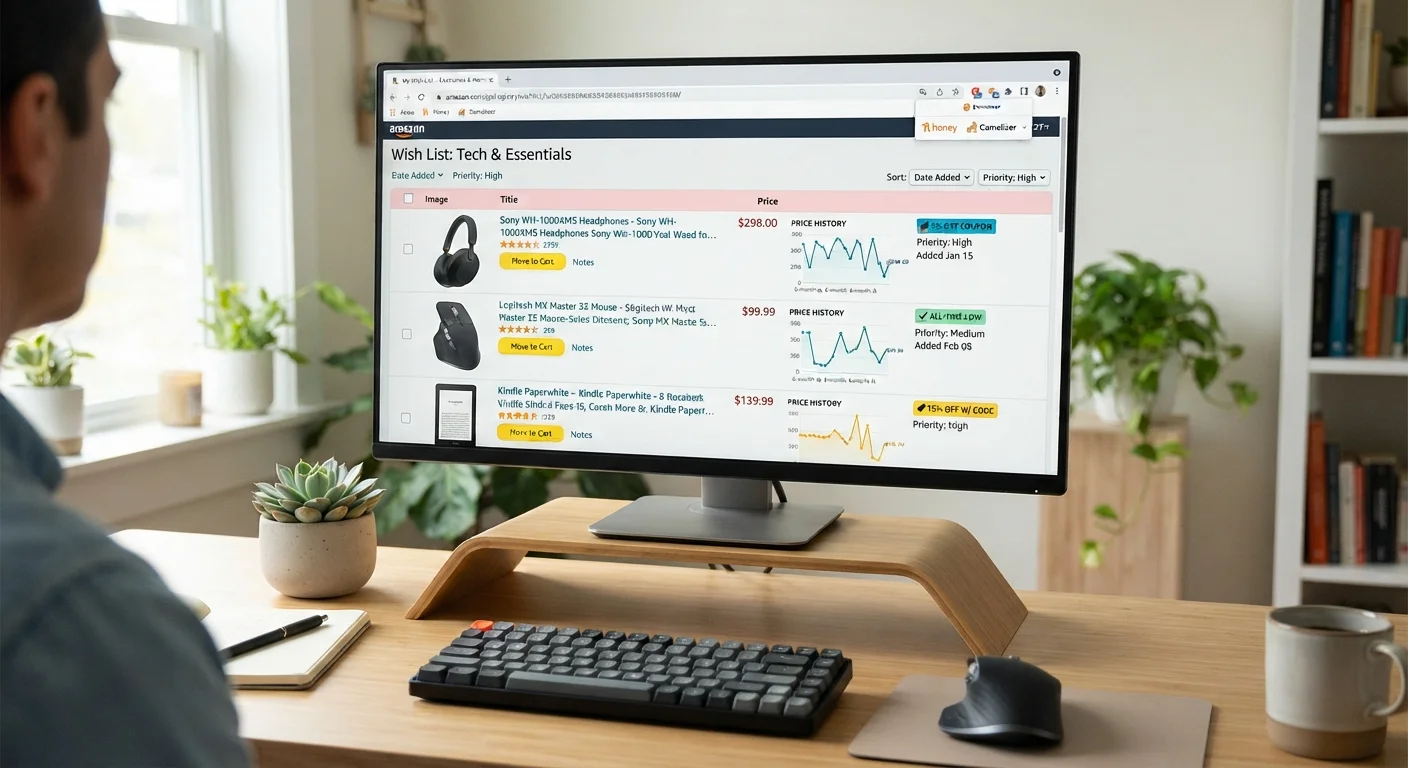
Add items you're considering to a wish list rather than buying immediately. Revisit the list periodically. Coupons appear and disappear on product pages over time, and wish-listed items occasionally receive targeted coupon offers visible only when you're logged in and viewing the item.
Filter Search Results by Coupon Availability
After running any Amazon search, look for the coupon filter in the left sidebar. Enabling it narrows results to products with active clippable coupons. This is particularly useful in categories like health, beauty, and grocery where coupon coverage is dense.
Set Up a Price Tracker for High-Value Items
For items over $50, use a browser-based price history tool alongside coupon monitoring. Coupons on high-value items tend to appear during periods when the base price is already lower - combining a price dip with an active coupon is when you hit the real floor price.
The habits above align with the broader framework covered in coupon stacking strategies - combining systematic monitoring with disciplined stacking is consistently more effective than reactive deal-hunting.