
Setting Up Your First Ebook on a Kindle, Phone, or Tablet From a Library
Step-by-step instructions for borrowing a free library ebook and reading it on whichever device you already own.
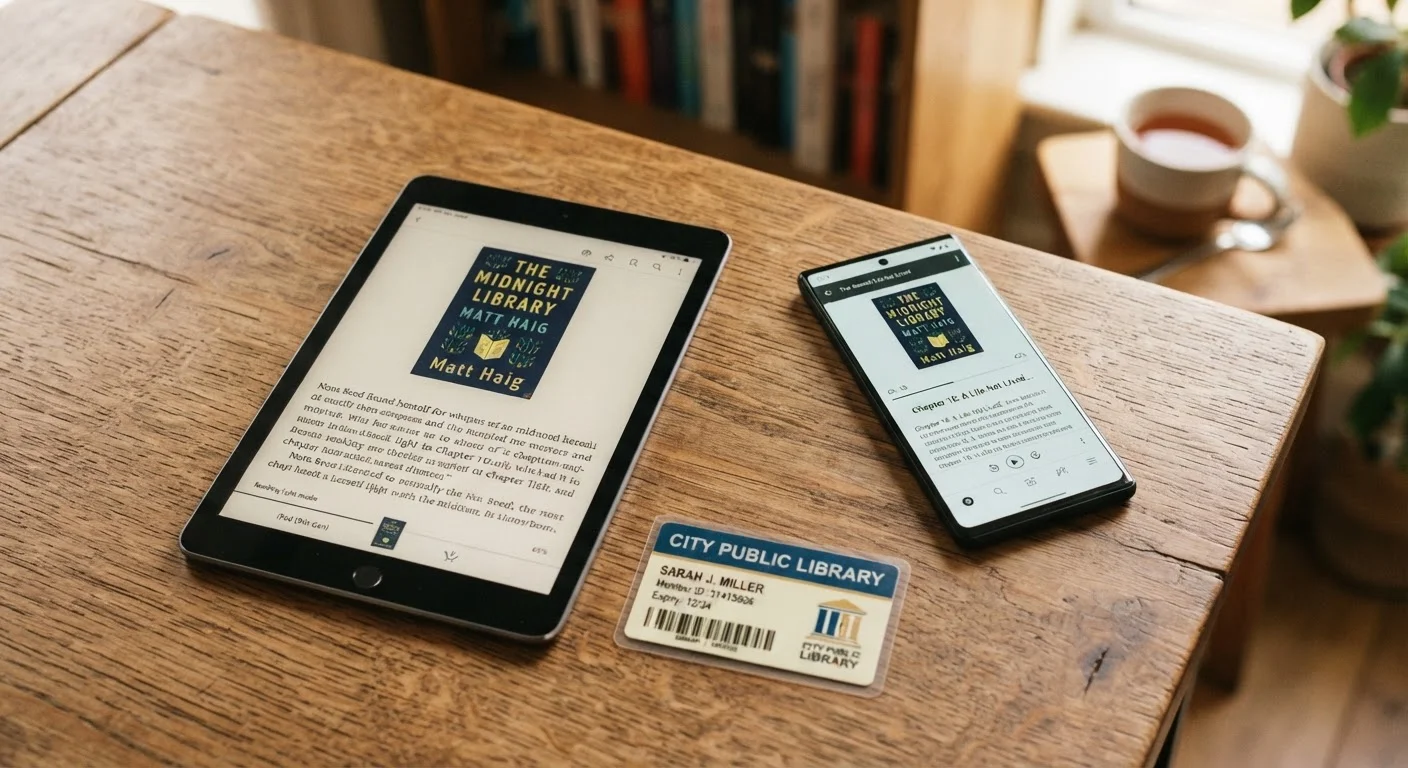
Photo: SaverSteals.com | Explore More. Shop Smarter. editorial
—— In This Article
Key Takeaways
- Most US public libraries offer free ebook lending through apps like Libby or Hoopla.
- You can read borrowed ebooks on a Kindle, smartphone, or tablet without buying anything extra.
- All you need to get started is a valid library card and a Wi-Fi connection.
- Libby sends ebooks directly to Kindle devices via Amazon; Hoopla titles are available immediately.
- Wait times apply to popular titles on Libby; Hoopla has no waitlists.
What You'll Need Before You Start
Borrowing a library ebook is genuinely free - no subscription, no credit card. The main requirement is a library card from a public library that participates in ebook lending, which describes the vast majority of US public libraries. If you're unsure whether yours qualifies, visit your library's website and look for a "Digital Resources" or "eBooks" section.
What you will need
Libby app (by OverDrive)
Connects to your public library to borrow ebooks and deliver them to a Kindle or read them in-app.
Hoopla Digital app or website
Offers instant ebook borrowing with no waitlists, available through most public libraries.
Amazon account
Required to route Libby ebooks to a Kindle device via the Send to Kindle feature.
If you're still deciding whether library apps are the right fit, or want to understand common misconceptions first, common assumptions about free ebooks that lead readers astray is worth a quick read before you dive in.
Step-by-Step: Borrowing and Reading Your First Library Ebook
The process differs slightly depending on whether you're reading on a Kindle or on a phone and tablet. The steps below cover both paths. Kindle users will follow Steps 1-5; phone and tablet users will follow Steps 1-4 and then Step 6. Step 7 applies to anyone hitting a waitlist.
Confirm your library card is active and note your card number
Locate your physical library card or check your library's website for a digital card option. You'll need the card number (and sometimes a PIN) to sign into lending apps. If your card has expired or you don't have one yet, most libraries allow you to register online in minutes.
Download the Libby app on your phone or tablet
Search for Libby in the App Store (iPhone/iPad) or Google Play (Android) and install it. Libby is free. Open the app, tap Yes when asked if you have a library card, then search for your library by name or let Libby detect your location.
Sign in with your library card
Once you've selected your library, Libby will prompt you to enter your library card number. Some libraries also require a PIN (often the last four digits of your phone number or a self-set PIN). After signing in, you'll see your library's full ebook catalog.
Search for a title and borrow it
Use the search bar or browse by genre. When you find a title, tap Borrow. If the book shows a wait time, tap Place Hold instead - you'll get a notification when it's ready. Loan periods are typically 14 or 21 days, and books return automatically so there are no late fees.
Send the ebook to your Kindle (Kindle users only)
After borrowing, Libby will ask How would you like to read this? Choose Send to Kindle. You'll be redirected to Amazon's website to sign in and select your Kindle device from a list. The book will appear in your Kindle library within a few minutes - sync your Kindle if it doesn't appear automatically.
Read in the Libby app (phones and tablets)
If you're reading on a phone or tablet, tap Open in Libby after borrowing. The book opens in Libby's built-in reader. You can adjust font size, background color, and brightness from the reader menu. Downloaded books are available offline once synced.
Try Hoopla if your title has a long waitlist
Download the Hoopla app or visit hoopladigital.com. Sign up with your email, then link your library card. Search for your title - Hoopla uses a simultaneous-access model, so most titles are available immediately. Tap Borrow and read directly in the Hoopla app. Note that Hoopla has a monthly borrow limit set by your library (commonly 4-10 titles).
No App Store? Use a Browser Instead
If you can't install apps on your device, visit libbyapp.com or hoopladigital.com in any modern web browser. Both platforms offer full functionality through the browser, including borrowing and reading - no download required.
Once you've borrowed a few titles and have a feel for how the apps work, you may want to explore how library lending fits into a broader free-reading strategy. Combining library apps, archives, and open access covers how to layer multiple sources for a full reading life at no cost.
Troubleshooting Common Hiccups
A few issues come up repeatedly for first-time users:
- Book won't appear on Kindle: Open your Kindle's library and swipe down to sync. If it still doesn't appear, go to amazon.com, navigate to Manage Your Content and Devices, find the title, and confirm it was delivered to the correct device.
- Library not found in Libby: Try searching by city name or zip code rather than the library's full official name. If your library uses a consortium system, the consortium name may be what appears.
- Card number rejected: Some libraries require a PIN separate from the card number. Check your library's website or call the branch - the PIN is often set during card registration.
- Hoopla says limit reached: Monthly borrow limits reset on the first of each month. Your library sets the limit, not Hoopla, so the number varies by institution.
Kindle Delivery Requires an Extra Step
Ebooks sent to Kindle are delivered through Amazon's servers, not the Libby app itself. This means your Amazon account must be active and your Kindle registered before the delivery step. If delivery fails, double-check that your Kindle's email address matches what Amazon has on file.
For a broader look at keeping your reading costs down across formats, getting started with buying books on a tight budget rounds up every reliable approach worth knowing, from physical secondhand copies to digital options.

Books Editorial Team
Books Editorial Team is the collective byline for our editorial team and contributor network. Articles published under this byline or an editorial pen name are researched, written, and reviewed according to our editorial standards for clarity, consistency, and independence before publication.
View author profile